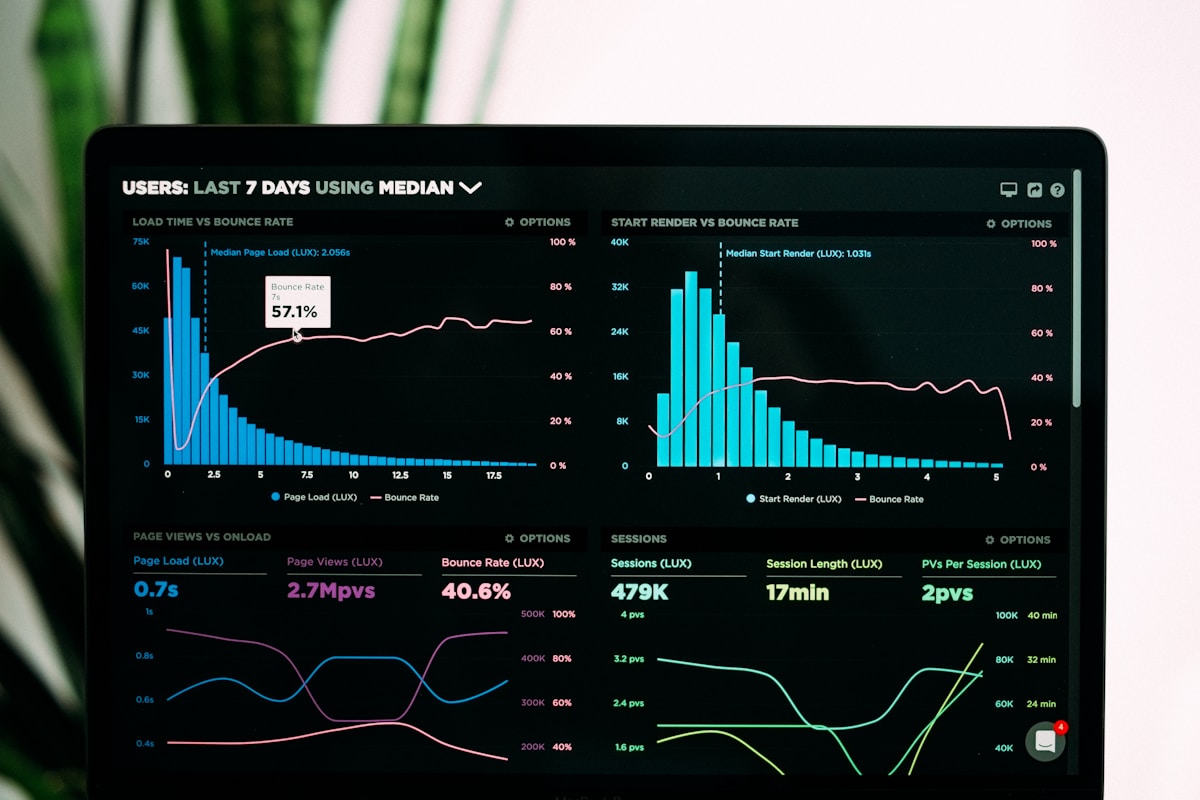
Google Search Console is the only tool that shows you exactly how Google sees your website — what it crawls, what it indexes, which queries bring clicks, and where errors hide. It's free, it's official data straight from Google, and no third-party tool can replace it. This guide walks through every report that matters, the metrics worth your attention, and the 30-minute weekly routine that professional SEOs actually use.
Setting up Search Console correctly
Use Domain property verification, not URL-prefix. A Domain property covers every version of your site — http and https, www and non-www, and all subdomains — in one place. It requires adding a DNS TXT record at your domain registrar, which takes about five minutes and is far more complete than verifying individual URL prefixes.
After setup, remember three things: Search Console only shows data from the day you verified onward (there's no historical backfill), performance data goes back up to 16 months, and you should add your SEO collaborators as users with appropriate permission levels rather than sharing logins.
The Performance report: your most valuable data
The Performance report shows clicks, impressions, average CTR, and average position for every query, page, country, and device — data no third-party tool can replicate because it comes directly from Google's logs.
Learn to slice it:
- Queries tab — the actual search terms triggering your pages. Sort by impressions to find demand you're not capturing.
- Pages tab — which URLs earn the traffic, and which ones underperform their potential.
- Date comparison — compare the last 28 days against the previous period to spot winners and losers after updates or site changes.
- Filters — filter by query containing a keyword to see every variation you rank for, or by page to diagnose a single URL. Regular expressions are supported for advanced filtering.
Two quick wins hide in this report. They deserve their own sections.
Quick win 1: high impressions, low CTR
Sort your queries by impressions, descending. Look for queries with thousands of impressions but few clicks — pages Google shows often but searchers skip. This is almost always a title tag and meta description problem, and it's the highest-ROI fix in SEO: improving a snippet costs nothing and the traffic is free.
Rewrite the title to match the search intent more precisely, front-load the primary keyword, and make the meta description a genuine reason to click rather than keyword stuffing. Audit your titles and meta descriptions in bulk first so you can spot the weak ones systematically. Then re-check the same queries after a few weeks — CTR improvements show up directly in this report.
Quick win 2: striking distance keywords
Filter the Performance report to queries where your average position is between 8 and 20 — page one bottom or page two. These are your "striking distance" keywords: close enough that targeted improvements often produce visible ranking jumps.
For each one, open the ranking page and ask: does it fully answer the query? Is it fresher and more complete than what's ranking above it? Common fixes that move striking-distance pages onto page one: expanding thin sections, adding the missing subtopic competitors cover, improving the title's intent match, and adding internal links from related pages. Work through ten of these per month and the compounding effect is significant.
The Page indexing report: find what's not indexed
Under Indexing, the Pages report (this replaced the old "Coverage" report) shows which of your URLs Google has indexed and — more usefully — why the rest aren't indexed. The statuses that matter most:
- Crawled – currently not indexed. Google visited but chose not to index. Usually a quality signal: thin content, heavy duplication, or a page Google doesn't consider worth indexing. Improve the content or consolidate it.
- Discovered – currently not indexed. Google knows the URL exists but hasn't crawled it yet. Common on large or new sites — strengthen internal linking to the page and make sure it's in your sitemap.
- Excluded by 'noindex' tag. The page carries a noindex directive. Fine if intentional (thank-you pages, admin pages); a problem if it's a page you want ranking.
- Alternate page with proper canonical tag. Google considers this URL a duplicate of another page. Usually correct behavior — investigate only if the wrong URL was chosen as canonical.
- Blocked by robots.txt. Your robots.txt disallows crawling. Remember that blocked pages can still appear in the index in limited form if other sites link to them — robots.txt blocks crawling, not indexing.
Pro tip: filter this report by sitemap. Submit a sitemap containing only the URLs you actually want indexed, then filter the Pages report to it — you get a clean view of indexation health for the pages that matter, without the noise of tag pages and archives.
The Sitemaps report
Submit your XML sitemap under Indexing › Sitemaps so Google discovers new and updated URLs faster. Keep sitemaps clean: only include canonical URLs that return HTTP 200, keep each sitemap under 50,000 URLs, and update the lastmod dates honestly. If you don't have a sitemap yet or yours is polluted with junk URLs, generate a clean XML sitemap and submit that instead — a tidy sitemap makes every indexing report easier to read.
The robots.txt report (Settings)
Google retired its old robots.txt tester inside Search Console and replaced it with a robots.txt report under Settings. It shows which robots.txt files Google found for your hosts, when each was last fetched, and any warnings or errors — plus an option to request a recrawl in emergencies.
Because Search Console no longer lets you test individual rules, test your robots.txt separately before Google fetches a bad version. Run your rules through a dedicated robots.txt tester whenever you change them — one wrong disallow can deindex your whole site, and it's much cheaper to catch it before Google does.
Core Web Vitals report
The Core Web Vitals report (under Experience) grades your URLs on three metrics Google uses in ranking: LCP (Largest Contentful Paint – loading), INP (Interaction to Next Paint – responsiveness; it replaced FID in March 2024), and CLS (Cumulative Layout Shift – visual stability).
Two things beginners get wrong: first, the data comes from real Chrome users (field data), so it reflects your actual visitors' experience, not a lab test — that's why it can differ from a one-off PageSpeed score. Second, fix issues at the template level, not page by page: a slow theme or a heavy plugin usually explains an entire "Poor" URL group, and one template fix clears hundreds of URLs at once.
The Links report
Under Links, Search Console shows your top external linking sites, your most-linked pages, and your internal linking structure — all from Google's own crawl data. Use it to verify that new backlinks have been discovered, to find your most link-worthy content (then create more like it), and to check that important pages receive enough internal links. Pages with zero internal links are pages Google considers unimportant.
Manual Actions and Security Issues
Check these quarterly, or immediately if traffic drops sharply. Manual Actions lists penalties applied by human reviewers (unnatural links, thin content, cloaking). Security Issues flags hacked content or malware. Either one can suppress your entire site, and both require a documented fix plus a reconsideration request (for manual actions) before recovery.
The URL Inspection tool
Paste any URL to see exactly what Google knows about it: when it was last crawled, whether it's indexed, which canonical Google selected, and whether the live page differs from the indexed version. The "Request Indexing" button asks Google to recrawl a page — useful after fixing an important page, but use it sparingly. It doesn't guarantee indexing and it's rate-limited; it's not a substitute for good internal linking and sitemaps.
The 30-minute weekly routine
Here's the routine professional SEOs actually follow. Thirty minutes, once a week:
- Performance overview (10 min). Compare last 28 days vs. previous period. Note the biggest click gainers and losers — investigate losers before small dips become trends.
- New striking-distance keywords (5 min). Filter positions 8–20, pick two or three to optimize this week.
- Indexing check (5 min). Glance at the Pages report filtered by your sitemap. Any new "crawled – not indexed" spikes need attention.
- CTR opportunities (5 min). Sort queries by impressions, find high-impression/low-CTR pages, queue title rewrites.
- Errors and vitals (5 min). Check Core Web Vitals for new "Poor" groups and confirm no new manual actions or security issues.
Do this every week for three months and you'll know your site better than any tool dashboard could tell you. For a deeper baseline on what "good" looks like, pair this routine with Google's official Search Console help documentation.
FAQ
What's the difference between Search Console and Google Analytics 4?
Search Console shows how Google sees your site: queries, impressions, rankings, crawl and index status. GA4 shows what users do on your site: sessions, engagement, conversions. They answer different questions — and one important note: GA4 can never show you bot traffic, because bots don't execute JavaScript. Crawl data lives in Search Console and your server logs, not in GA4.
Why do I have impressions but almost no clicks?
Your pages appear in results but searchers don't click — usually weak titles/descriptions, or you rank at positions where CTR is naturally low. It can also mean AI Overviews or other SERP features are absorbing clicks, in which case target queries where your snippet can still win the click.
How far back does Search Console data go?
Up to 16 months of performance data. Export anything you want to keep longer — there is no way to recover data older than that window.
Why isn't my new page indexed yet?
Check the URL Inspection tool first. Common causes: the page is too new (give it days, not hours), weak internal linking, a noindex tag left over from staging, robots.txt blocks, or thin content Google chose not to index. Fix the cause, then request indexing once.
Can I give my SEO freelancer access without sharing my Google account?
Yes — add them as a user on the property with "Full" or "Restricted" permission from Settings › Users and permissions. Never share your Google login.
Does the "Request Indexing" button guarantee my page gets indexed?
No. It asks Google to recrawl the URL, but indexing is never guaranteed and the tool is rate-limited. Pages earn indexing through quality content, internal links, and sitemaps — not through repeated requests.